How to Reset Network Settings on iPhone
Reset network settings on iPhone without losing track of your Wi-Fi passwords, plus what to try first and what to set back up after the reset.
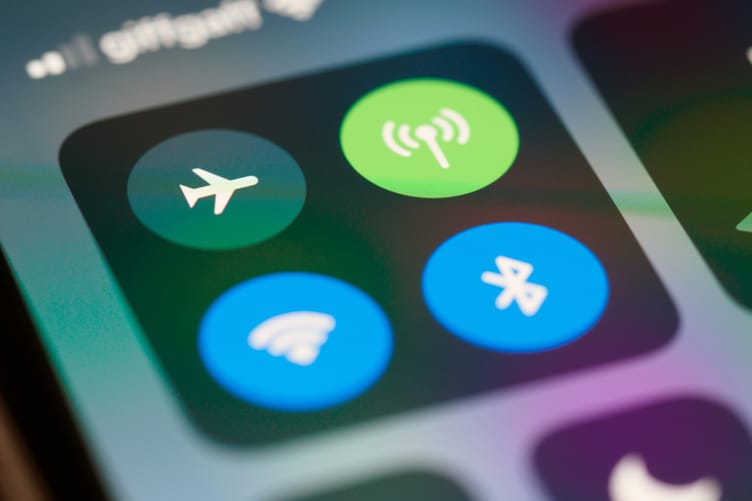
Resetting network settings gives your iPhone a clean start on Wi-Fi, cellular, and VPN connections without touching your photos, messages, or apps. The work is in what comes before and after, because the reset also erases every saved Wi-Fi password, renames your phone to "iPhone", and makes your router see it as a new device.
Apple treats this reset as a last resort for Wi-Fi trouble, so the first step covers the smaller fixes Apple lists before it, none of which wipe anything. The last two put back what the reset changes, including router filters and data roaming, which give no warning when they stop working.
These steps follow Apple's iPhone User Guide for iOS 27 and its support articles as published in October 2026. The menu path is the same on every version since iOS 15.
Rule out the smaller fixes first
A network reset wipes every saved network, so rule out the fixes that touch less first. Apple's Wi-Fi troubleshooting article puts it last and says to reset network settings "only if other solutions fail." Work through these in order, testing the connection after each one. Wi-Fi or cellular on and off. In Settings, turn on Airplane Mode for at least 15 seconds, then turn it off. In Settings > Wi-Fi, check that Wi-Fi is on. Restart. Turn the iPhone off and on again. Apple lists a restart as the fix when the Wi-Fi switch is dimmed. One network only. If a single Wi-Fi network fails while others work, forget just that one. In Settings > Wi-Fi, tap the More Info button next to the network, tap Forget This Network, then join it again with its password. This is the fix we pick before a full reset, because it clears the same saved details for one network and leaves the rest alone. Restarting the router and modem belongs in this round too. VPN and security apps. If you use one, uninstall it, restart, and test again. Carrier settings. For cellular trouble, go to Settings > General > About while connected to Wi-Fi or cellular. If a carrier settings update is offered, follow the onscreen instructions. Apple says it installs in less than a minute.
Heads up: If your employer or school set up the network or manages your iPhone, ask their IT team before resetting. Apple gives the same advice. Settings installed by a configuration profile or device management survive the reset anyway, so it will not clear a problem those settings cause.
Save the Wi-Fi passwords you will need again
The reset erases every saved Wi-Fi network and its password, so collect the ones you cannot look up on a router sticker before you start. That means networks like a partner's home Wi-Fi, an office network, or one whose password someone texted you once. On iOS 18 or later, open the Passwords app and tap Wi-Fi. You will see every network the iPhone has saved, and tapping one shows its password. On iOS 16 and 17, go to Settings > Wi-Fi and tap Edit in the upper-right corner. Unlock with Face ID, Touch ID, or your passcode, tap the More Info button next to a network, and tap the Password field. Apple's Wi-Fi password article describes both routes. Copy them somewhere off the phone, such as a note on your computer or a piece of paper. While you are at it, write down the login for any VPN you added by hand, because the reset removes those too.
Reset network settings
Open Settings and go to General > Transfer or Reset iPhone > Reset. The Reset menu holds several options, and two of them sit close to the one you want. Reset All Settings also removes your Apple Pay cards and resets the keyboard dictionary, location, and privacy settings. Delete All eSIMs removes your cellular plan, and Apple says not to erase an eSIM as a troubleshooting step unless your carrier tells you to. Tap Reset Network Settings. If your iPhone asks for your passcode, enter it. Tap Reset Network Settings again in the confirmation that appears. Wi-Fi turns off and back on, which disconnects you from the network you were on. Photos, messages, apps, and contacts are not touched. Apple's reset settings page lists everything the reset changes. On iOS 14 and earlier, the menu is Settings > General > Reset instead. The path has been the same since iOS 15.
Rejoin Wi-Fi and rename your iPhone
Go to Settings > Wi-Fi, tap your network, and enter its password. A blue checkmark next to the name means you are connected. The Wi-Fi and Ask to Join Networks switches stay on through the reset, so there is nothing to turn back on there. Next, give the phone its name back. The reset changes the name in Settings > General > About to plain "iPhone". Tap Name and type the old one. The name matters beyond the About screen. Your Personal Hotspot broadcasts under the device name, so until you rename it, the hotspot shows up on your laptop as "iPhone".
Fix what the reset changed
A few changes do not show up until something stops working. Go through this list once, right after the reset. Router device filters. After a network reset, the iPhone joins each network with a new private Wi-Fi address, according to Apple's private Wi-Fi address article. A router that only lets in approved devices, blocks devices on a schedule, or reserves an IP address for your phone now sees a stranger. Open the router's app or admin page, approve or re-add the iPhone, and delete the old entry. Data roaming. Apple notes that roaming may be turned off. If you are traveling, go to Settings > Cellular > Cellular Data Options and turn on Data Roaming. Wi-Fi Calling. If you use it, go to Settings > Cellular > Wi-Fi Calling and check that Wi-Fi Calling on This iPhone is on. VPNs. A VPN you added by hand, or that an app added for you, is gone. Open the VPN app and sign in again, or re-enter the settings you saved in step 2. Bluetooth. Apple's reset page does not mention Bluetooth, but AT&T's iPhone instructions say the reset disconnects Bluetooth devices. If headphones or your car do not reconnect on their own, pair them again. Computers. The reset clears the list of computers your iPhone trusts. The next time you plug it into a Mac or PC, tap Trust on the iPhone when the alert appears.
If Wi-Fi still fails on one network but works everywhere else, the problem is the router, not the iPhone. Restart the router and modem, check for a firmware update in the router's app, and if your router broadcasts both 2.4 GHz and 5 GHz, join the other band. If Wi-Fi connects but pages load slowly, our guide to fixing slow DNS lookup covers what to check next. If Wi-Fi or cellular fails everywhere after the reset, contact your carrier for cellular problems or Apple Support for Wi-Fi ones, and run the diagnostics in the Apple Support app on iOS 18 or later. When the carrier confirms your account and network are fine and nothing above helped, Apple treats it as a hardware problem that needs service. For an iPhone that is slow rather than offline, clearing the cache is the better next step.
Questions we get asked about this
Answers from experience, not a textbook.
No. Apple describes the Reset options as returning settings to their defaults without erasing your content. Photos, messages, contacts, apps, and app data stay where they are. The only option in that area that deletes content is Erase All Content and Settings, which sits one screen up under Transfer or Reset iPhone, not inside the Reset menu.
No. Apple lists Delete All eSIMs as its own option in the Reset menu, separate from Reset Network Settings, and Apple's description of the network reset does not include your eSIM. Do not tap Delete All eSIMs while you are in that menu unless your carrier asks you to, because getting the plan back means setting up the eSIM again.
Apple's current No Service and SOS article does not include a network reset at all. It lists Airplane Mode for at least 15 seconds, a restart, checking with your carrier, updating iOS, a carrier settings update, and checking your SIM. If none of that works and your carrier confirms there is no problem with your account or network, Apple's next step is a hardware repair. On iOS 18 or later, the Apple Support app can run extra diagnostics before you book a repair.
Reset Network Settings clears Wi-Fi networks and passwords, cellular, VPN, and APN settings, and renames the phone to iPhone. Reset All Settings does all of that and also removes Apple Pay cards and resets the keyboard dictionary, location, and privacy settings. If Stolen Device Protection is on and you are away from a familiar location, Reset All Settings makes you wait an hour first. A network reset has no such delay. Start with the network reset for any connection problem.
Apple's security documentation says a network reset clears the list of computers your iPhone trusts. The next time you connect it with a cable, your iPhone shows the Trust This Computer alert. Unlock the iPhone, tap Trust, and enter your passcode if asked. Finder, iTunes, or the Apple Devices app will then see the phone again.
Tech Troubleshooting Basics
How to Clear Cache on iPhone
How to Force Quit on Mac
How to Fix GPS Not Working
How to Fix Laptop Overheating
How to Fix Phone Screen Unresponsive Touch
How to Fix Slow Boot Mac
How to Fix Slow DNS Lookup
How to Check Your Motherboard Model
How to Reset Network Settings on iPhone
← you’re here