How to Check Your Motherboard Model
Find your motherboard model on Windows, Mac, or Linux without opening the case, plus what to do when it shows a laptop code or a blank field.
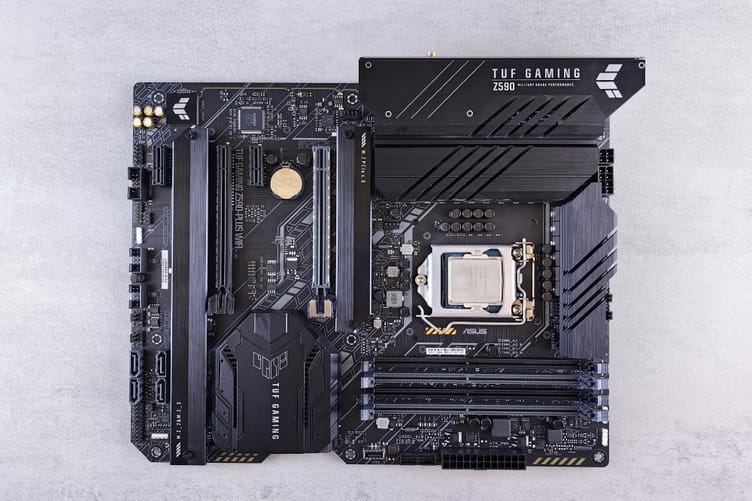
You need your motherboard's exact model before you update the BIOS, download chipset drivers, or check whether a new processor or memory kit will fit. On Windows and Linux, the operating system reads it straight from the board's firmware, without opening the case.
The answer is not always a name you can shop for. On our ASUS laptop, Windows reports the board as FX517ZE, which is the model code of the laptop itself. Macs identify the whole computer instead of the board, and some boards leave the field blank. Each step says what to do in those cases.
We ran the Windows steps on an ASUS TUF Dash F15 with Windows 11 25H2 in October 2026. Our only Linux on that laptop runs inside WSL, which hides the board, so the Linux steps follow the dmidecode, inxi, and lshw manuals and the Linux kernel's own file permissions. The Mac menu steps follow Apple's support article as updated in September 2026.
A Windows PC, Mac, or Linux computer you can sign in to Your account password, only for the sudo commands on Linux A flashlight and a screwdriver for the side panel, only if you check the board itself
On Windows, open System Information
Press Windows + R, type msinfo32, and press Enter. Keep System Summary selected in the left pane and scroll the right pane until you reach three lines that start with BaseBoard. Windows calls the motherboard the baseboard. BaseBoard Manufacturer is the company that made the board, BaseBoard Product is the model, and BaseBoard Version is the revision the maker recorded. On our laptop the three lines read ASUSTeK COMPUTER INC., FX517ZE, and 1.0. Write down the Product line exactly as shown, every letter and number. Board makers organize their BIOS and driver downloads by that exact name.
Good to know: The BIOS Version/Date line a few rows higher is not the board model. On our laptop it reads FX517ZE.317, which is the firmware version installed on the board.
Run one PowerShell command for text you can copy
When we need to paste the model into a search box or a support form, we use PowerShell instead. Right-click the Start button, choose Terminal (Windows PowerShell on Windows 10, or search the Start menu for PowerShell), and run: Get-CimInstance Win32_BaseBoard | Select-Object Manufacturer, Product, Version It ran without administrator rights on our laptop and printed the same three values in a small table. Microsoft documents this class as representing "a baseboard, which is also known as a motherboard or system board", and its Product field holds the part number the manufacturer defined. On Windows 11, ignore older guides that tell you to run wmic baseboard get product. On our Windows 11 25H2 laptop the WMIC program is not there at all. Microsoft's WMIC removal notice says the utility has been removed from currently supported versions of Windows 11 and is no longer available as an optional feature. The PowerShell command reads the same data.
If you have a laptop or a brand-name PC, look up the computer's model instead
On a laptop, or a desktop from a brand like Dell, HP, or Lenovo, BaseBoard Product can be the computer maker's own code rather than a name you can shop for. Ours shows FX517ZE, which is the model code of the whole laptop and appears again in the System Model line as ASUS TUF Dash F15 FX517ZE_FX517ZE. That is by design. Microsoft's guidance to PC makers says the format of the baseboard product field "can be set by Company" and "doesn't need to align to end user marketing information." The same guidance says the field "isn't marketed to end users", so the code alone will not lead you to a product page. For these machines, use the System Manufacturer and System Model lines from step 1. Go to the manufacturer's support site, enter that model or the serial number from the sticker on the case or underside, and download BIOS updates and drivers from there.
On Linux, read the board details from sysfs or dmidecode
Open a terminal. The quickest check needs no root password, because the kernel makes these three files readable by every user: cat /sys/class/dmi/id/board_vendor /sys/class/dmi/id/board_name /sys/class/dmi/id/board_version The three lines that come back are the maker, the model, and the revision, in that order. The board serial number sits in the same folder as board_serial, but only root can read that file. For a fuller report, run sudo dmidecode -t baseboard. The dmidecode manual lists baseboard as the keyword for the board's records, and sudo dmidecode -s baseboard-product-name prints the model alone. If dmidecode is not installed, install it from your distribution's package manager, for example sudo apt install dmidecode on Ubuntu and Debian. If you prefer a summary, inxi -M shows the motherboard alongside the BIOS (install it with sudo apt install inxi on Ubuntu and Debian), and sudo lshw -class bus lists the board as its "Motherboard" entry. Run lshw with sudo, because its manual says that without root it reports only partial information.
Heads up: Linux running in a virtual machine, including WSL on Windows, does not read your real board's details. On our laptop, WSL's Ubuntu 24.04 had no /sys/class/dmi/id folder at all. Run the check on the host computer instead.
On a Mac, identify the Mac model, not the logic board
Apple calls the motherboard the logic board, and its support pages identify a Mac by the model of the whole computer, not the board. That model is what you look up for repairs, compatibility, and upgrade questions. Choose Apple menu > About This Mac. The window shows the model name under a picture of your Mac. For the exact identifiers, hold the Option key, choose Apple menu > System Information, and select Hardware in the sidebar. The overview lists the Model Identifier, such as MacBookPro18,1, and the Model Number, which Apple also calls the part number. Apple's guide to identifying your Mac tells you to search either value in its "Identify your Mac" articles to get the exact name. Apple's article does not cover Terminal. In Terminal, system_profiler SPHardwareDataType prints the same Hardware Overview, including the Model Identifier.
Check the board itself when the software shows nothing useful
If BaseBoard Product is blank or says Not Available, or the PC will not start, read the model off the hardware. Check these in order, from least to most effort. First, the box and the manual. ASUS lists the gift box as one of its three ways to find a board's model. Second, the firmware setup screen. On ASUS desktop boards, press Delete as the PC starts, and the model appears in EZ Mode. MSI says most board makers list the model on the first page of their setup screen. Third, the board. Shut the PC down, switch off the power supply, and unplug the cable before you remove the side panel. Use a flashlight to find the model name printed on the circuit board, which is the second method ASUS gives. Look for the revision while you are there. Gigabyte says it prints a revision number such as "REV: 1.0" on all of its boards, shows it in the top left corner, and tells owners to pick the BIOS and drivers for that revision.
With the model and revision written down, go to the board maker's support page for that exact model. The BIOS, driver, and compatibility lists for a board all live there, and on a laptop or brand-name PC the computer maker's support page does the same job. If step 6 also comes up empty, photograph the whole board and search each printed code on it, then compare product photos until the slot and connector layout matches yours. If you are checking the board because the computer runs slowly or hot, our guides on fixing an overheating laptop and fixing a slow-booting Mac are the next places to look.
Questions we get asked about this
Answers from experience, not a textbook.
No. BaseBoard Version is the hardware revision the maker wrote into the board's firmware tables. The BIOS version changes every time you install a firmware update. On our laptop the BaseBoard Version is 1.0 and the BIOS version is FX517ZE.317. Use the board model and revision to find the right download page, then compare the BIOS version to see whether you need the update.
Windows and Linux read the model from a table the board maker writes into the firmware, defined by the SMBIOS standard. The standard lets a maker leave any of these text fields empty. Windows then shows a blank or Not Available. On Linux the sysfs file is empty or missing, and dmidecode prints Not Specified. Nothing in your operating system can fill it in, so check the box, the firmware screen, or the board itself as step 6 describes.
Yes. Look at the box or manual first, then the printed name on the board itself. On a laptop or brand-name PC, use the model and serial number on the sticker underneath or on the back of the case. Enter them on the manufacturer's support site, which lists the BIOS and drivers for that machine.
Not the real one. A virtual machine sees the virtual hardware it was given, not your board. In WSL's Ubuntu 24.04 on our laptop, the /sys/class/dmi/id folder did not exist, and lshw run without sudo listed a Motherboard entry with no maker or model. Run the check on the computer that is actually running the virtual machine.
Yes, including any suffix and the revision. A BIOS file is built for one board, and boards with nearly the same name can need different files. Gigabyte, for example, tells owners to choose the BIOS and drivers that match the revision printed on their board. Take the model from step 1 or step 2 and the revision from step 6, then download from the board maker's support page for that model, never from a third-party site.
Tech Troubleshooting Basics
How to Clear Cache on iPhone
How to Force Quit on Mac
How to Fix GPS Not Working
How to Fix Laptop Overheating
How to Fix Phone Screen Unresponsive Touch
How to Fix Slow Boot Mac
How to Fix Slow DNS Lookup
How to Check Your Motherboard Model
← you’re here