How to Fix Windows Update Error
Fix a Windows 11 update error from its code. Check Microsoft's known issues, repair with DISM and SFC, reset the cache, or reinstall and keep your files.
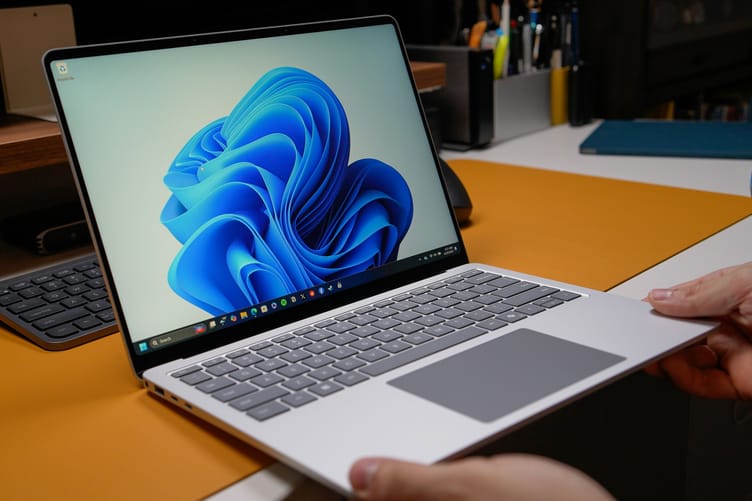
When you finish, the waiting update installs, and you know which fix it needed, because the error code tells you where to start. Start from that code instead of running every repair in a row. Some errors are Microsoft's to fix, a few come from a full drive or a VPN, and only damaged system files need the repair commands.
Sometimes the right first move is to wait. In November 2026, the PCs that could not install the monthly security update were set to be repaired by Microsoft from its end within 48 hours, as long as they were online and using Windows Update. So check the code and Microsoft's list of known issues before any repair, then run the repairs in order, from the least disruptive to a full reinstall that keeps your files.
We ran the checks and repairs in steps 3 and 4 on an ASUS TUF Dash F15 with a Core i7-12650H, running Windows 11 Pro 25H2 (build 26200.9974 after the November update), in November 2026. Steps 5 to 7 follow Microsoft's own instructions, checked the same month.
A Windows 11 PC and an administrator account The error code from Update history About 20 GB of free space (see step 3) An external drive or cloud storage for a backup before step 7
Write down the error code and the update number
In Settings > Windows Update > Update history, find the failed entry. Write down two things: the update number, which starts with KB, and the error code, which starts with 0x. Every later step depends on them, and the code tells you where to start. 0x800f081f, 0x800f0831, or 0x80073712 means damage in the component store, the folder of system files Windows builds updates from. Microsoft lists these as corrupted or missing system files. Go to step 4. 0x8007000d means the download arrived damaged. Run step 4 first, then step 5. 0x80070070 means the PC is out of space. Free space as described in step 3. 0x800f0922 means Windows ran short of disk space or a component such as the .NET Framework failed. Free space as in step 3, disconnect any VPN, then retry. 0x80070002 means the install failed without a more specific cause. Restart, then work through step 3. 0x80070422 means the Windows Update service is not running. Press Win + R, type services.msc, and double-click Windows Update. If Startup type says Disabled, set it to Automatic and select Apply. Then select Start and restart the PC. If you see 0x80070306, 0x800f0989, or 0x800f0993 on the November 2026 update, read step 2 before you touch anything. If your code is not on the list, start at step 2 and work down. The steps run from the least disruptive fix to the most.
Good to know: To see every attempt with its time, open Event Viewer, go to Windows Logs > System, and filter by the source WindowsUpdateClient. Failures carry event ID 20. Store app updates are logged there too. If a failed entry names an app instead of a KB number, the Windows steps below do not apply to it.
Check whether Microsoft already knows about the error
Search the update number with the words known issues. Every monthly update has a Microsoft support page, and its Known issues section says when Microsoft has confirmed a problem and what it is doing about it. If your error is listed there and Microsoft says a fix is rolling out, wait for that fix before you run the repairs below. November 2026 is a live example. On November 11, Microsoft added a known issue to the KB5132061 support page. Some devices failed to install the update, retried it over and over, or showed 0x80070306, 0x800f0989, or 0x800f0993. As BleepingComputer reported, Microsoft said the issue affects devices that installed the October 2026 preview update, KB5127936, and that devices without it are not affected. The support page itself lists only Windows 11 24H2 Enterprise and Education as affected, although users on other editions reported the same codes. Microsoft said it would repair affected PCs automatically within 24 to 48 hours, starting November 11 at 10 a.m. Pacific Time, with no action needed from users, as long as the PC is online and gets updates through Windows Update in Settings. If the update still fails more than 48 hours after that, Microsoft says to contact its support, and steps 4 to 7 are your options in the meantime. To check whether your PC has KB5127936, look under Quality updates in Update history.
Heads up: Some users on Windows 11 forums traced their November failure to Windows Sandbox and installed the update after turning the feature off. This is a user workaround, not Microsoft's fix, and at least one failure happened on a PC without Sandbox. Turn Sandbox off only if it is on and the update still fails after the 48-hour window, and turn it back on once the update is in.
Restart, free space, and remove what blocks updates
Restart the PC before you run any repair. While an update waits for a restart, the System File Checker refuses to run and stops within seconds with "There is a system repair pending which requires reboot to complete. Restart Windows and run sfc again." If you see that message, restart and run it again. Next, check free space in Settings > System > Storage. Microsoft's update troubleshooting page asks for at least 20 GB free on 64-bit Windows before a version upgrade. Microsoft gives no figure for monthly updates, so use 20 GB as your line for those too. The November 2026 update is a 5,020.7 MB file for x64 PCs in the Microsoft Update Catalog. To clear space, select Temporary files on the same page. Then remove the usual blockers. Disconnect any VPN, unplug external drives and adapters you do not need, and in Settings > Time & language > Date & time, turn on Set time automatically and Set time zone automatically. Then select Check for updates again. The Windows Update troubleshooter is in Settings > System > Troubleshoot > Other troubleshooters, and on Windows 11 it runs inside Microsoft's Get Help app. If Get Help is not installed, selecting Run opens the Microsoft Store so you can install it first. Give the troubleshooter one try, and if it does not report a fix, go on to step 4 without it.
Repair Windows system files with DISM, then SFC
If you skipped here from step 1, restart the PC first, because SFC below refuses to run while an update waits for a restart. To check whether Windows has damaged its own files, open the Start menu, type Terminal, right-click it, and select Run as administrator. Run the read-only check first: DISM /Online /Cleanup-Image /ScanHealth It changes nothing and takes about 3 to 7 minutes on a modern laptop. Leave it alone until it reaches 100%, even when the bar stops moving for a while. No component store corruption detected means your files are fine, so skip to step 5. The component store is repairable means DISM found damage it can fix. Non-repairable means go straight to step 7. Repairable damage is not always what blocks your update, because a PC can report repairable and still install updates, but repair it anyway before you go further. To repair it, run this line. It downloads clean copies of the damaged files from Windows Update: DISM /Online /Cleanup-Image /RestoreHealth The repair takes far longer than the scan, about 40 minutes on a modern laptop, and the bar can sit on one number for several minutes before it jumps ahead. It is done when it says The restore operation completed successfully. Then run the System File Checker, which Microsoft's System File Checker page says to run after DISM: sfc /scannow It takes a few minutes. Keep the window open until the scan reaches 100%. Windows Resource Protection did not find any integrity violations means the system files are clean. To confirm the DISM repair held, run DISM /Online /Cleanup-Image /CheckHealth, which answers in a few seconds. After a successful repair it reports no component store corruption. Restart, then try the update again.
Good to know: If SFC says it found corrupt files but was unable to fix some of them, run this line to copy its findings to your desktop: findstr /c:"[SR]" %windir%\Logs\CBS\CBS.log >"%userprofile%\Desktop\sfcdetails.txt". The file holds SFC's details from every run, so read the entries with today's date to find the files it could not repair.
Reset the Windows Update download cache
Windows keeps update downloads in C:\Windows\SoftwareDistribution. A damaged download there fails the same way every time you retry, which is what 0x8007000d means. Do this after step 4, not before. Resetting the cache throws away downloads that were fine, and Windows has to fetch them again, which can be more than 1 GB. In an administrator Terminal, stop the services that use the folders, rename them, and start the services again. Run the lines one at a time: net stop bits net stop wuauserv net stop cryptsvc ren C:\Windows\SoftwareDistribution\DataStore DataStore.bak ren C:\Windows\SoftwareDistribution\Download Download.bak ren C:\Windows\System32\catroot2 catroot2.bak net start bits net start wuauserv net start cryptsvc These stop, rename, and start lines come from Microsoft's procedure for resetting Windows Update components, which keeps the renames for when the simpler fixes have not worked, which is where you are by now. Renaming instead of deleting keeps the old folders as a way back. If a rename says access is denied, run the three stop lines again and retry the rename. Microsoft's longer procedure also resets service permissions and re-registers dozens of files, and Microsoft itself says to skip the permissions step unless everything else has failed. Then select Check for updates. Windows rebuilds the folders and downloads the update again. Once it installs, delete the .bak folders.
Install the update by hand from the Microsoft Update Catalog
If Windows Update keeps failing to download the update, download it yourself. Open the Microsoft Update Catalog, type the update number from step 1, and select Search. Each update has one row per Windows version and processor type, and the title names both, for example version 25H2 and x64. Pick x64 for Intel and AMD PCs and arm64 for Snapdragon laptops. Your version is in Settings > System > About, under Windows specifications. Select Download on that row, and in the window that opens, select the file link. If no window opens, allow pop-ups for the Catalog site. Double-click the downloaded file to install it. If the installer says the update does not apply to your PC, you picked the wrong version or processor type, or the update is already installed. Some monthly updates also need an earlier checkpoint update installed first, and the update's own support page names it.
Reinstall Windows with Fix problems using Windows Update
When nothing above works, reinstall the current version of Windows over itself. Microsoft says to keep the PC plugged in and online for the whole reinstall. In Settings > System > Recovery, find Fix problems using Windows Update and select Reinstall now, then choose whether the PC may restart on its own 15 minutes after the install finishes, and select OK. Microsoft says this reinstalls your current version of Windows without affecting your files, apps, or settings. It downloads a fresh copy of Windows, so keep the free space from step 3. On Microsoft's own Q&A forum, Reinstall now is what finally installed the November 2026 update for one user. The option needs Windows 11 version 22H2 or later with the February 2024 optional update or newer installed. Microsoft says it can be missing on PCs managed by a work or school. If it is missing or fails, download the Windows 11 installation media from Microsoft, run setup from inside Windows, and choose to keep your files and apps. Do not choose Reset this PC or Rebuild PC on the same page for an update error. Both remove your apps, and Rebuild PC also removes your files.
Heads up: Back up your files to an external drive or cloud storage before you reinstall. Reinstall now is designed to keep them, and the backup covers you if the reinstall stops partway through.
If the same update fails again after step 7, check its support page once more. A new known issue for your update means waiting is now the fix, and Microsoft updates the page when a repair rolls out. If Microsoft lists nothing, contact Microsoft Support and give them the error code and update number from step 1, plus the result of each step you ran. For version upgrades, Microsoft says the rollback code 0xC1900101 means an incompatible driver is causing the failure, so update your network and graphics drivers, unplug extra hardware, and do a clean boot before you try again. If the update installed but the PC is now slower, start with our guide on debloating Windows 11, which measures what runs in the background. The FAQs below cover a stuck DISM, the update cache, and uninstalling an update.
Questions we get asked about this
Answers from experience, not a textbook.
Usually not. A Microsoft external-staff moderator on Microsoft's Q&A forum explains that the pause at 62.3% during RestoreHealth is DISM downloading files it needs. Windows writer Ed Tittel saw the same pause on two PCs and found a 10-minute gap in DISM's log at that point while the work went on. Give it 20 minutes, twice the gap Tittel logged. If the bar has still not moved, close the window, restart, and run the command once more. If it stalls again, skip to step 7.
That message is error 0x800f081f, and it means DISM could not download clean files from Windows Update. If your updates install anyway, you can leave it. If updates are failing too, go to the reinstall in step 7. It brings its own fresh copy of Windows, which is simpler than pointing DISM at a Windows installation file by hand.
No. Updates that are installed stay installed, and Windows checks again and downloads what is still missing. What can change is the list in Update history, which can show fewer entries after the reset. Write down your error codes before step 5.
No. The repairs that fix update errors are the DISM, SFC, cache, and reinstall steps above, which are built into Windows and free. Running them yourself means you see exactly what each command reports and changes. A third-party tool adds software with administrator rights to a PC that is already failing to update.
Yes, unless it is one of the updates Microsoft says cannot be uninstalled. In Settings > Windows Update > Update history, select Uninstall updates under Related settings, then choose the update. Before you remove a security update, know that its fixes leave with it. Microsoft's own advice for Windows 11 is to try Reinstall now from step 7 first.
Pause it. In Settings > Windows Update, choose a length next to Pause updates. Windows makes you install the latest updates when the pause ends before you can pause again, so use the time to check the update's Known issues section from step 2.
Tech Troubleshooting Basics
How to Clear Cache on iPhone
How to Force Quit on Mac
How to Fix GPS Not Working
How to Fix Laptop Overheating
How to Fix Phone Screen Unresponsive Touch
How to Fix Slow Boot Mac
How to Fix Slow DNS Lookup
How to Check Your Motherboard Model
How to Reset Network Settings on iPhone
How to Debloat Windows 11
How to Fix Windows Update Error
← you’re here