How to Install Claude Code on Windows 11
Install Claude Code on Windows 11 with the native installer, add it to PATH, confirm it with claude doctor, and log in to start your first session.
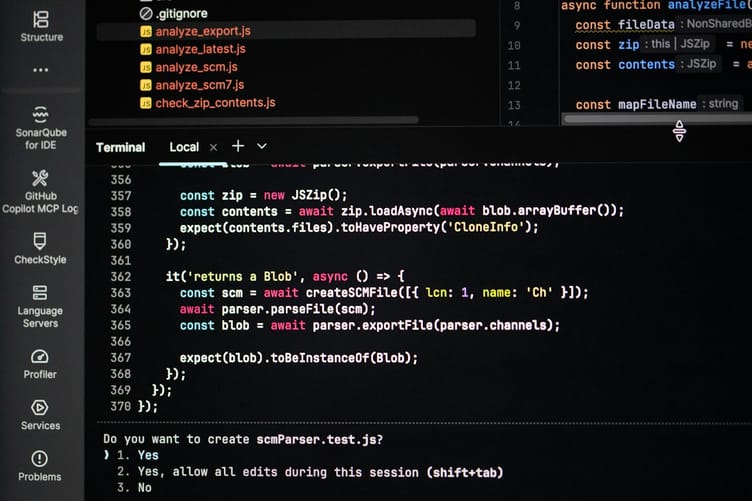
When you finish, Claude Code runs from any PowerShell or Command Prompt window on your Windows PC, keeps itself up to date, and is signed in to your Claude account, ready to work on a project folder.
Claude Code is Anthropic's coding assistant for the terminal. It reads the files in a folder, runs commands, and makes the changes you ask for after you approve them. The install takes one command, and most problems people hit afterwards come from two things the installer leaves to you: Git for Windows and the PATH. The steps cover both.
We checked the version, PATH, Git, and claude doctor commands on Windows 11 version 25H2 with Claude Code 2.1.330 and Git for Windows 2.45.1 in November 2026. The installer commands follow Anthropic's setup page as of November 21, 2026.
A 64-bit Windows 10 (1809 or newer) or Windows 11 PC A Claude Pro, Max, Ultra, Team, or Enterprise plan, or a Claude Console account About 10 minutes
Check that your PC and your Claude plan can run it
Claude Code runs on Windows 10 version 1809 or newer and on every version of Windows 11. It needs a 64-bit processor, either x64 or ARM64, at least 4 GB of RAM, and an internet connection. To check your processor type, open Settings > System > About and read System type. The installer stops on 32-bit Windows with the message "Claude Code does not support 32-bit Windows." The plan matters more than the PC. According to Anthropic's setup page, Claude Code needs a Pro, Max, Ultra, Team, or Enterprise subscription, or a Claude Console account that pays per use. The free claude.ai plan does not include Claude Code, so upgrade before you install, or the login in step 6 has nothing to sign in to.
Install Git for Windows first
Claude Code works without Git, but install it anyway. With Git for Windows on the PC, Claude Code runs its commands through Git Bash and keeps PowerShell available alongside it. Without Git, it falls back to PowerShell for everything.
Run the Git installer and keep the default options. To confirm Git is there, open PowerShell and run:where.exe gitA path such as C:\Program Files\Git\cmd\git.exe comes back. Claude Code looks for Git Bash in C:\Program Files\Git first, so the default install location needs no extra setup.
Good to know: If you installed Git somewhere else, point Claude Code at it with the CLAUDE_CODE_GIT_BASH_PATH setting, set to the full path of bash.exe, for example C:\Program Files\Git\bin\bash.exe.
Run the native installer in PowerShell
Use the native installer. It is the method Anthropic marks as recommended, it keeps Claude Code updated on its own, and it needs no administrator rights. Open Windows PowerShell or Terminal from the Start menu as your normal user and run:irm https://claude.ai/install.ps1 | iexThe command shows nothing while it downloads, so leave it running until it prints Installation complete! The script fetches the latest version, checks the download against its SHA-256 checksum, stops if the two do not match, and places the program at %USERPROFILE%\.local\bin\claude.exe.
If you prefer Command Prompt, run this there instead:curl -fsSL https://claude.ai/install.cmd -o install.cmd && install.cmd && del install.cmdEach command only works in its own shell. The message 'irm' is not recognized means you are in Command Prompt, and The token '&&' is not a valid statement separator means you are in PowerShell.
If the installer prints Setup notes, add the folder to PATH
The installer does not change your PATH. When %USERPROFILE%\.local\bin is missing from it, the output ends with a Setup notes section, and typing claude fails with "The term 'claude' is not recognized". To check the PATH yourself, run this in PowerShell:$env:PATH -split ';' | Select-String '\.local\\bin'No output means the folder is missing. Add it to your user PATH with the two lines from Anthropic's install troubleshooting page:$currentPath = [Environment]::GetEnvironmentVariable('PATH', 'User')
[Environment]::SetEnvironmentVariable('PATH', "$currentPath;$env:USERPROFILE\.local\bin", 'User')Close every terminal window and open a new one, because a window keeps the PATH it started with. Restart VS Code or any other editor with a built-in terminal for the same reason.
Confirm the install with claude doctor
In a new terminal window, run:claude --versionA working install prints a version number followed by (Claude Code), such as 2.1.330 (Claude Code). Then run the built-in health check:claude doctorIt only reads, so it is safe to run at any time. It lists the install method, the path of the program it found, and whether automatic updates are on, and it ends with No installation issues found. when everything is in order.
To make sure only one copy is installed, run where.exe claude. A native install shows a path ending in .local\bin\claude.exe. If paths under AppData\Roaming\npm show up too, an older npm install is still there, and the two copies compete for the claude command. Remove the npm one with npm uninstall -g @anthropic-ai/claude-code.
Log in and start Claude Code in a project folder
Claude Code works on the folder you start it in, so move into your project first:cd C:\Users\YourName\Projects\my-app
claudeOn the first run, Claude Code opens a browser window to sign in. Log in with the account that has your Pro, Max, or other paid plan. If no browser window appears, press c in the terminal to copy the login link and paste it into your browser. If the browser shows a code instead of returning you to the terminal, paste that code at the Paste code here if prompted line. The terminal confirms with Login successful. Press Enter, and a prompt waits for your first message. Start with a question about the project, such as "explain what this folder contains", before asking for changes, so you can see how it reads your files.
To switch to a different account later, type /login inside the running session. To leave, type /exit or press Ctrl+D twice. The native install checks for updates every time it starts and installs them in the background, and they take effect on the next start. To update on the spot, run claude update.
If claude is still not recognized after you fixed the PATH, check that the program exists with Test-Path "$env:USERPROFILE\.local\bin\claude.exe". False means the install did not finish, so run the installer from step 3 again. If the installer itself fails to download, check that your network reaches Anthropic's download server with curl.exe -sI https://downloads.claude.ai/claude-code-releases/latest. A working connection answers with HTTP/1.1 200 OK, and anything else points to a firewall or proxy blocking it.
For problems the FAQs below do not cover, the troubleshooting page linked in step 4 lists each Windows error message with its fix. Inside a running session, /doctor runs a fuller check than claude doctor and can repair some problems itself.
Questions we get asked about this
Answers from experience, not a textbook.
No. The free claude.ai plan does not include it. You need a Pro, Max, Ultra, Team, or Enterprise subscription, or a Claude Console account billed per use. The program itself costs nothing to download.
Use the native installer unless your company requires a package manager. WinGet installs work (winget install Anthropic.ClaudeCode) but do not update themselves, so you run winget upgrade Anthropic.ClaudeCode by hand. The npm package needs Node.js 22 or newer. Pick one method, because two installs on the same PC compete for the claude command.
Use WSL 2 if you want Claude Code's sandboxing, which isolates the commands it runs. Anthropic's setup page lists sandboxing as supported on WSL 2 and not supported on native Windows or WSL 1. In that case, open your WSL distribution and run the Linux installer there, curl -fsSL https://claude.ai/install.sh | bash, and always start claude from the WSL terminal.
For a native install, run these two lines in PowerShell: Remove-Item -Path "$env:USERPROFILE\.local\bin\claude.exe" -Force and Remove-Item -Path "$env:USERPROFILE\.local\share\claude" -Recurse -Force. For WinGet, run winget uninstall Anthropic.ClaudeCode. Your settings and session history stay in the .claude folder and the .claude.json file in your user folder. Delete those too only if you want a clean slate, because they also hold your allowed tools and MCP server setup.